Open the task list
Shopping, items to bring, clinic preparation, and small family requests can be gathered in the task list.
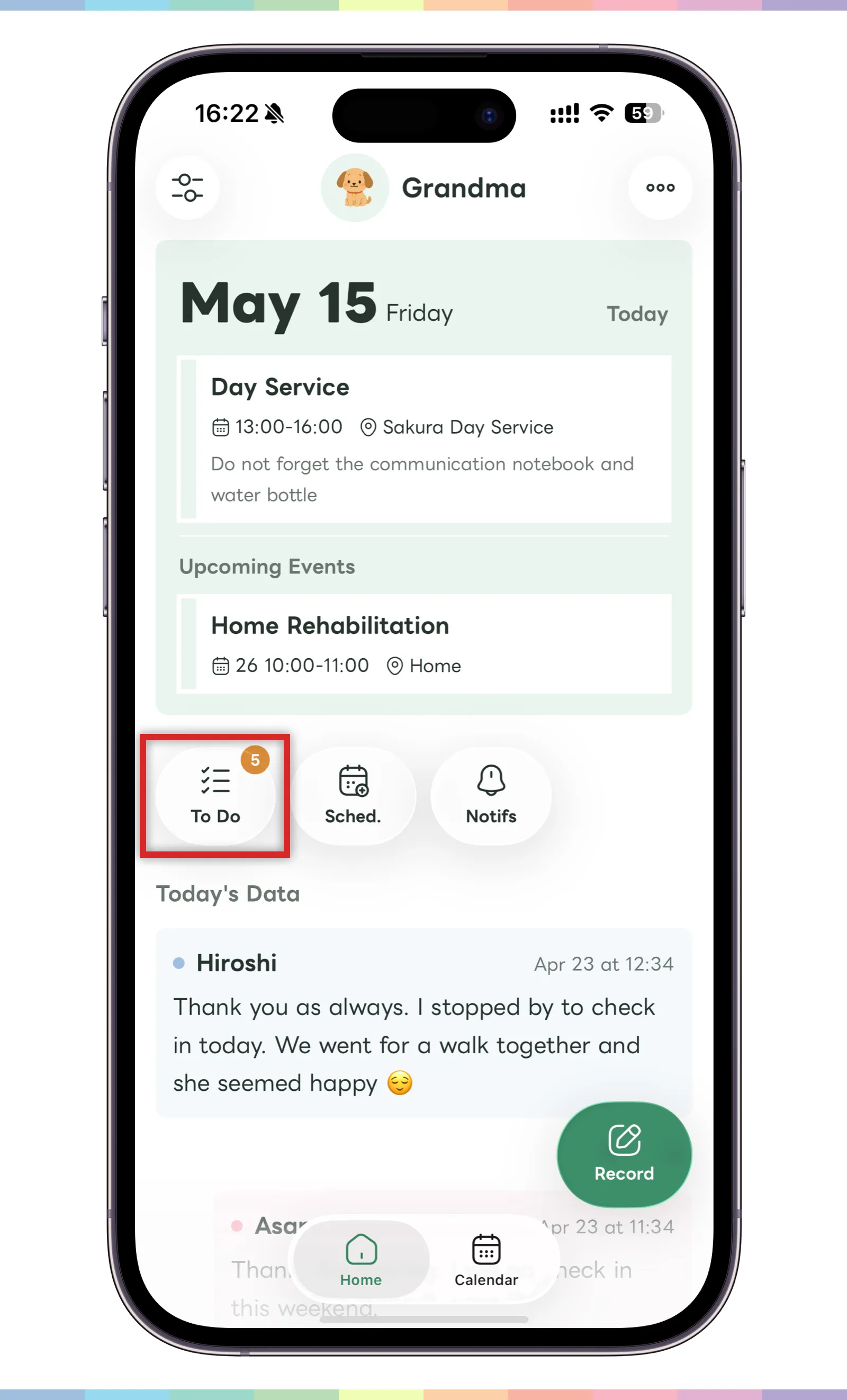
- On the home screen, the number of unfinished tasks is shown as a badge.
- Tap the task button to open the task list.
On the list screen, tap the circle on the left side of a task to add a check mark and complete that task. Completed tasks can be checked from the home screen or calendar screen. The completed task UI also shows who completed it.
Open task creation
When you want to add a new task, open the task creation screen from the task list.
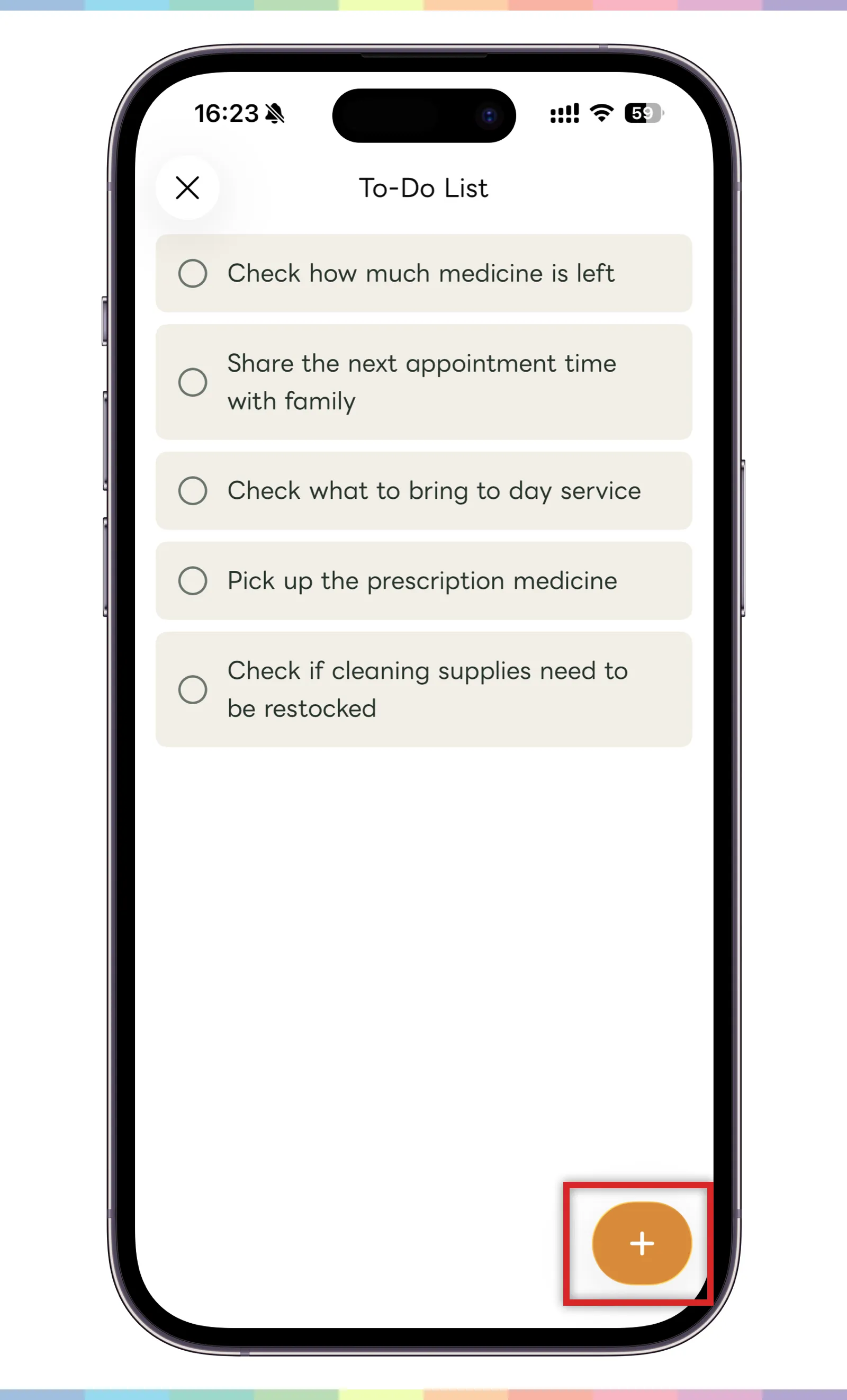
- Tap the plus button in the bottom right of the task list.
- The task creation screen will appear.
To edit a task, tap the target task in the task list. You can edit the task you tapped.
Create a task
On the task creation screen, enter the task you want to share with family.
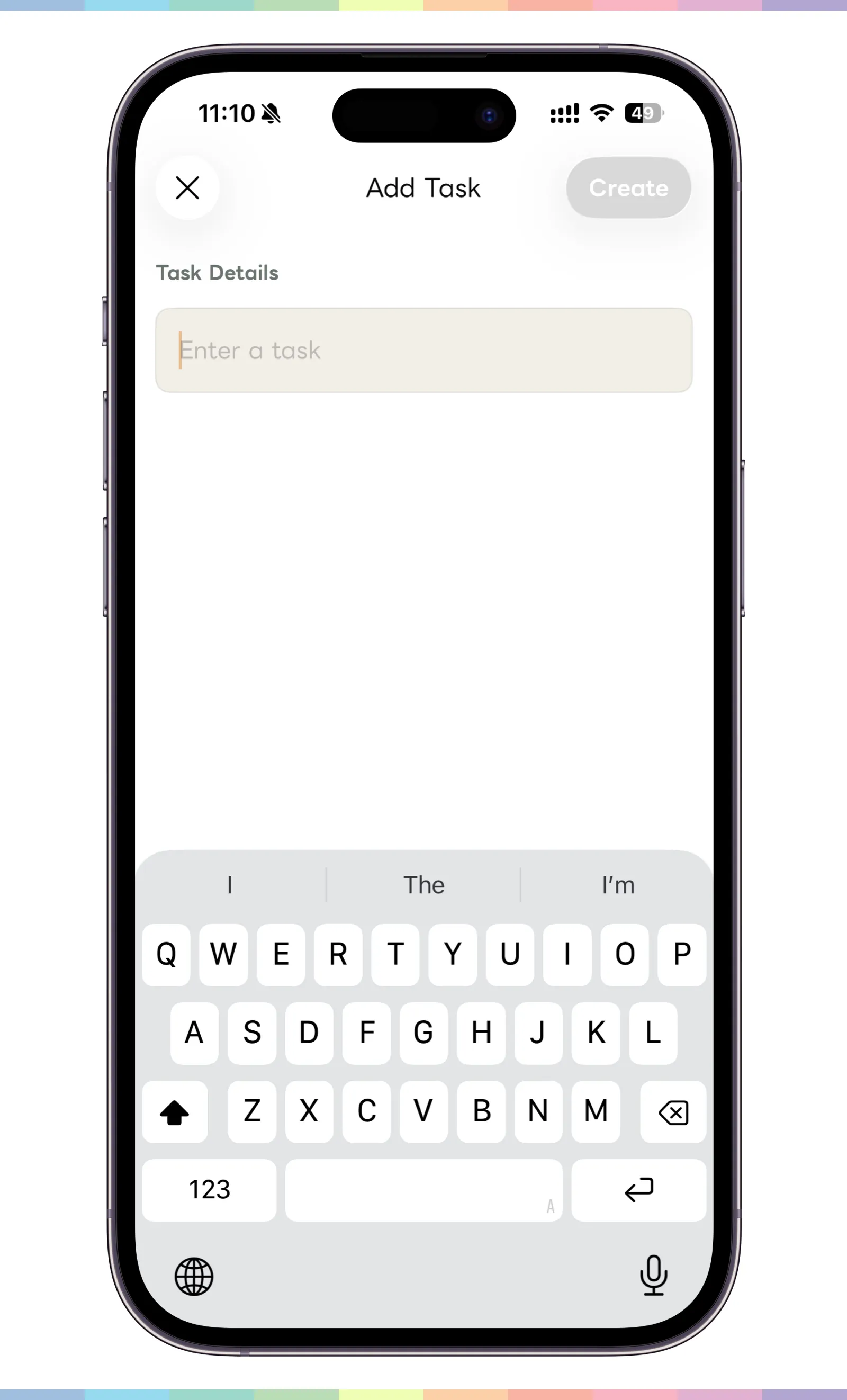
- Enter the task content.
- When the input is complete, tap “Create” in the top right.
Write clear action-based tasks, such as “Check the remaining medicine” or “Share the next clinic time with the family.” If the details change, tap the task in the task list to edit it.